
Chazie Baniquid
Technical Content Marketer
6 minutes to read
Vulnerability Found in a WordPress Plugin: What Should You Do Next?
If a plugin vulnerability is found, update to the patched version right away. No patch yet? Deactivate or delete the plugin. Then check your site for signs of compromise, new admin accounts, changed files, strange redirects. Once it’s stable, audit unused plugins, run a scanner like OOPVulns, and keep tested backups so the next one is easier to handle.
Exploitation Starts Within Hours of Disclosure
Once a plugin vulnerability is public, it’s a race. Automated bots start probing sites for the affected version within hours of disclosure, often before most site owners even see the alert. The gap between disclosure and exploitation is measured in hours, not days. That’s why the first response matters more than any long-term fix.
Step 1: Patch Immediately
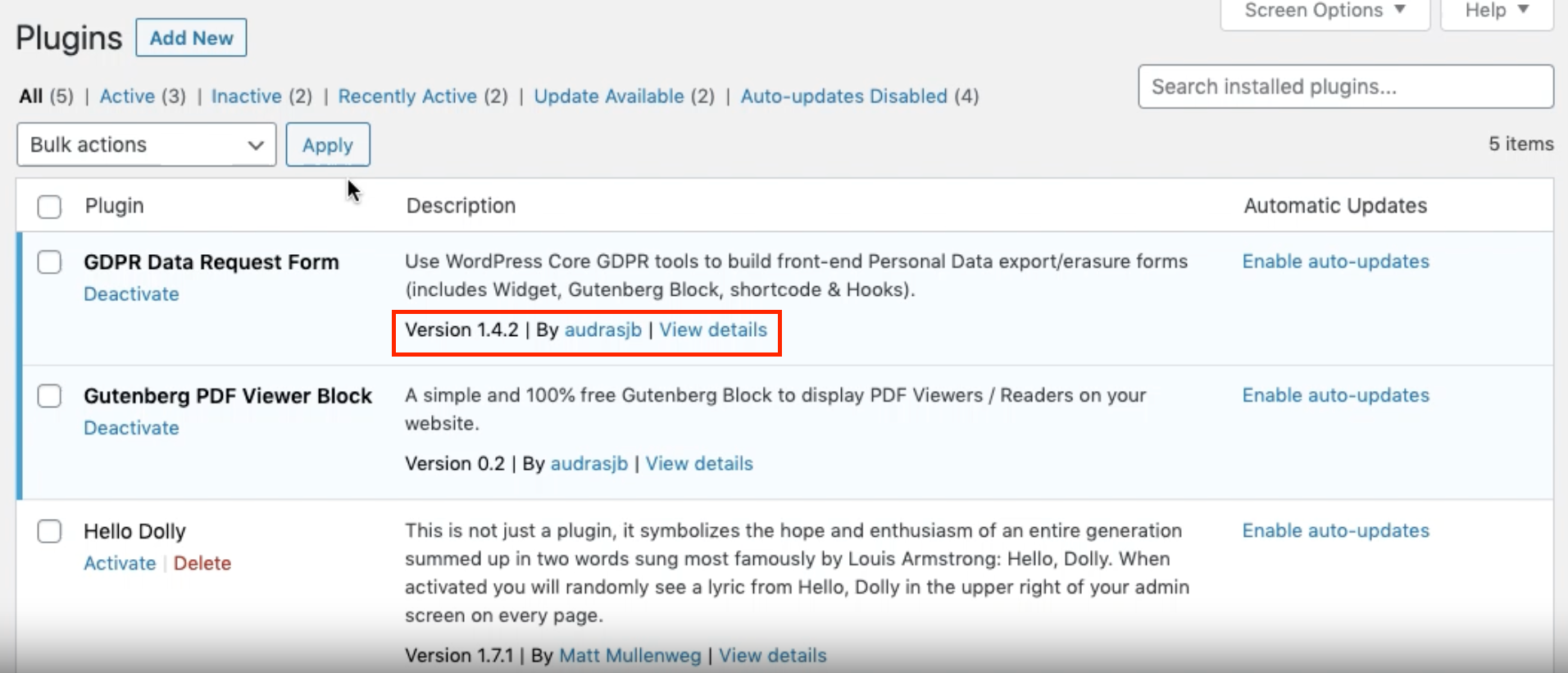
If the developer has released a fixed version, update now. Don’t wait for a maintenance window. A critical plugin flaw is an emergency, not a routine task. Confirm the new version number matches or exceeds the one listed in the vulnerability advisory before you consider the site safe.
Step 2: No Patch Yet? Deactivate or Remove
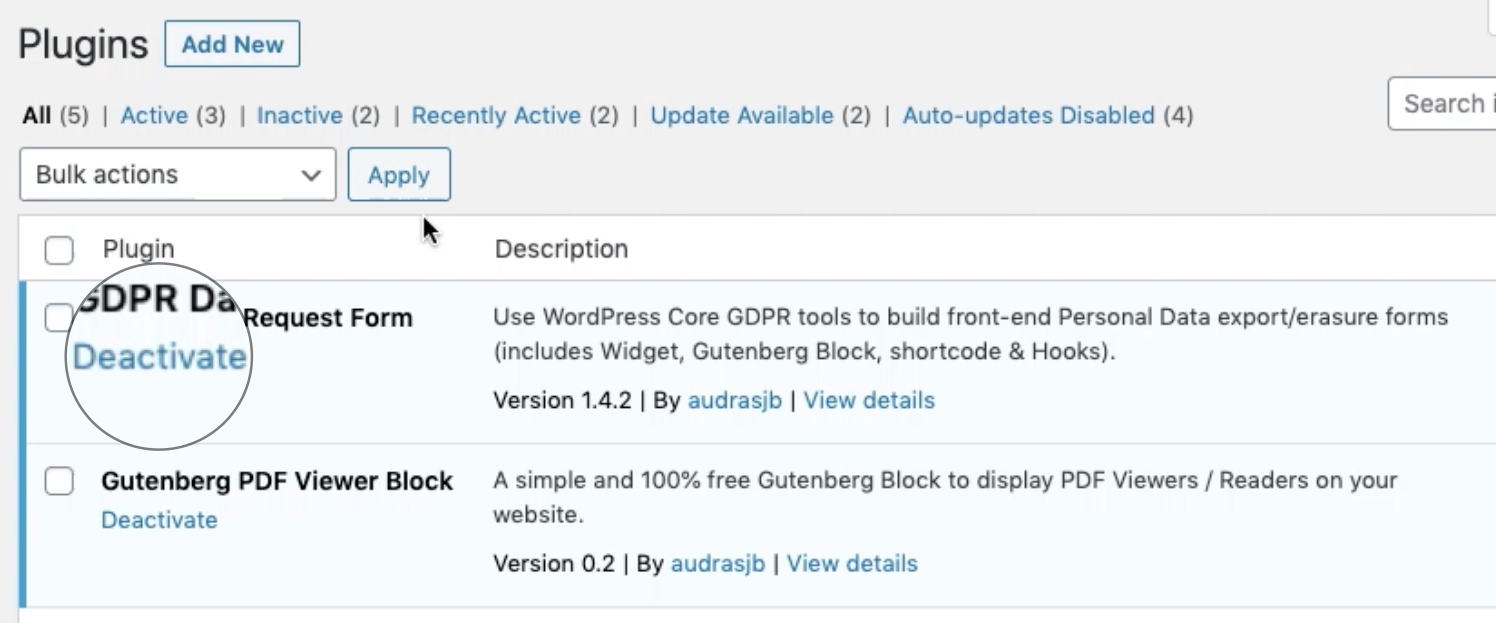
If there’s no fix available, don’t leave the plugin running. Deactivate it from the Plugins screen, or delete it outright if you can live without the feature. A disabled plugin can’t be exploited. Look for a like-for-like replacement only after confirming the original threat is neutralized.
Step 3: Check for Signs of Compromise
Patching stops new attacks. It doesn’t undo one that already happened. If the vulnerability was public for a while before you caught it, check for:
- Admin accounts you didn’t create.
- Recently modified core, theme, or plugin files.
- Unexpected redirects or pop-ups on the front end.
- New scheduled tasks (cron jobs) you don’t recognize.
- Unfamiliar files in uploads or plugin directories.
If you find any of these, treat the site as compromised: restore from a clean backup, rotate all passwords and API keys, and consider a professional malware cleanup before putting the site back in production.
After the Fire Is Out: Long-Term Steps
Audit and Remove What You Don’t Use
Deactivated plugins still sit on the server as files. If one is ever reactivated, or directly accessed, it’s a live target again. Delete anything you’re not actively using.
Monitor Continuously with OOPVulns
OOPVulns (that is us) is a free plugin built to catch the next vulnerability faster than a manual check ever could. It scans WordPress core, every installed plugin, and every theme against a live vulnerability database, and shows results in a dashboard with color-coded severity: Critical, High, Medium, or Low, plus whether a fix is already available.
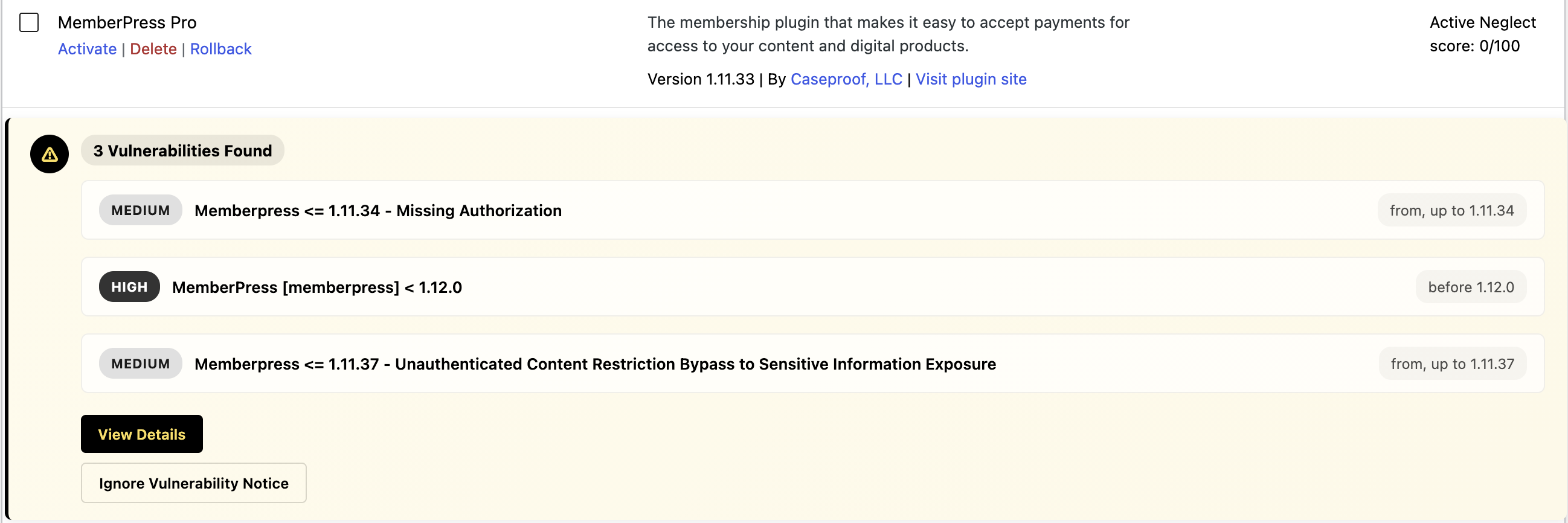
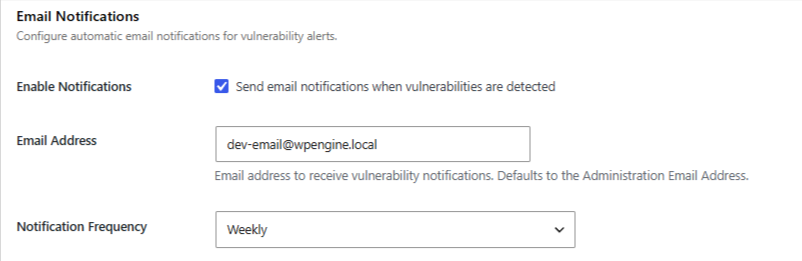
Scanning is opt-in. It does nothing until an admin turns it on, and it can run daily or weekly with email alerts the moment something new is found, so you’re not relying on remembering to check.
It also flags abandonment risk using a neglect score built from WordPress.org signals (last-updated date and unresolved critical support threads) with a badge like “Slow maintenance” or “Likely abandoned.” That’s useful here specifically: a plugin that already caused one incident and is no longer actively maintained is a strong candidate for replacement, not a second chance.
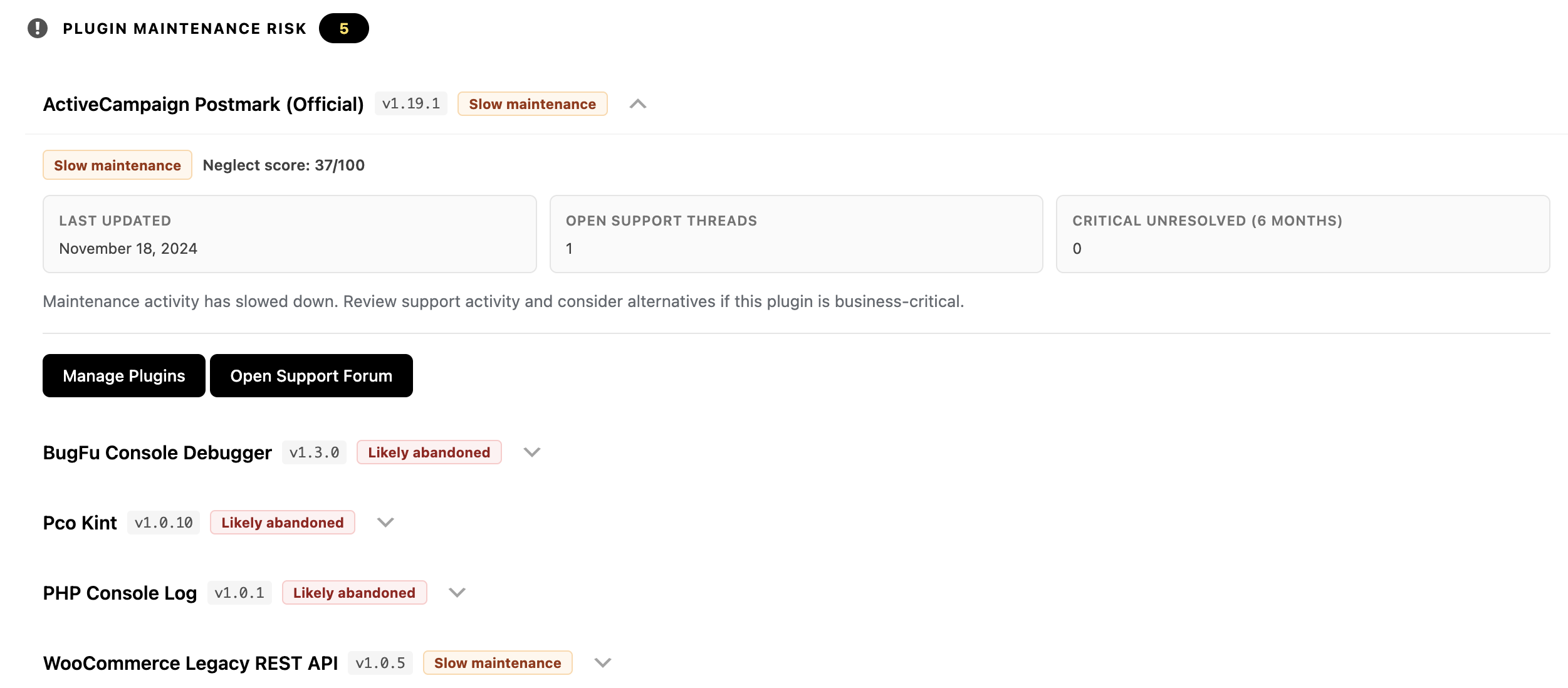
Only plugin/theme slugs, versions, and your core version are sent out. No personal data or site content leaves your server.
Setting Up OOPVulns
Install OOPVulns from Plugins → Add New, then activate it.
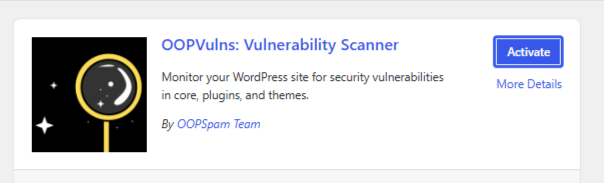
Register to generate an API key. Then, copy and paste the key into the appropriate field within the plugin. Go to Settings and enable vulnerability scanning. It’s off by default until an admin enables it.
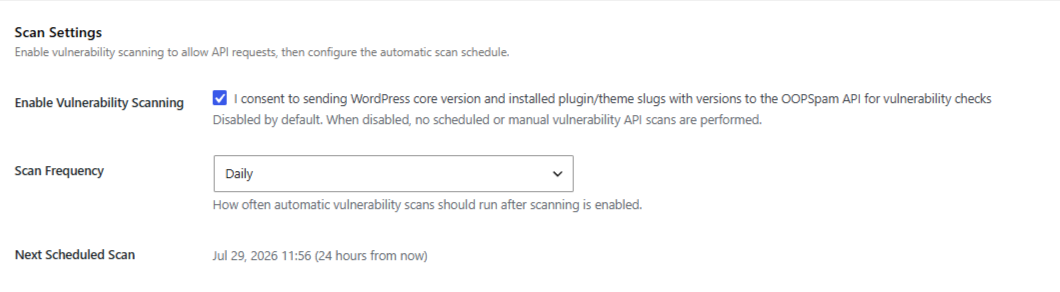
Set a scan schedule (daily or weekly) and turn on email notifications.
Run the first scan and review the dashboard, sorted by severity.
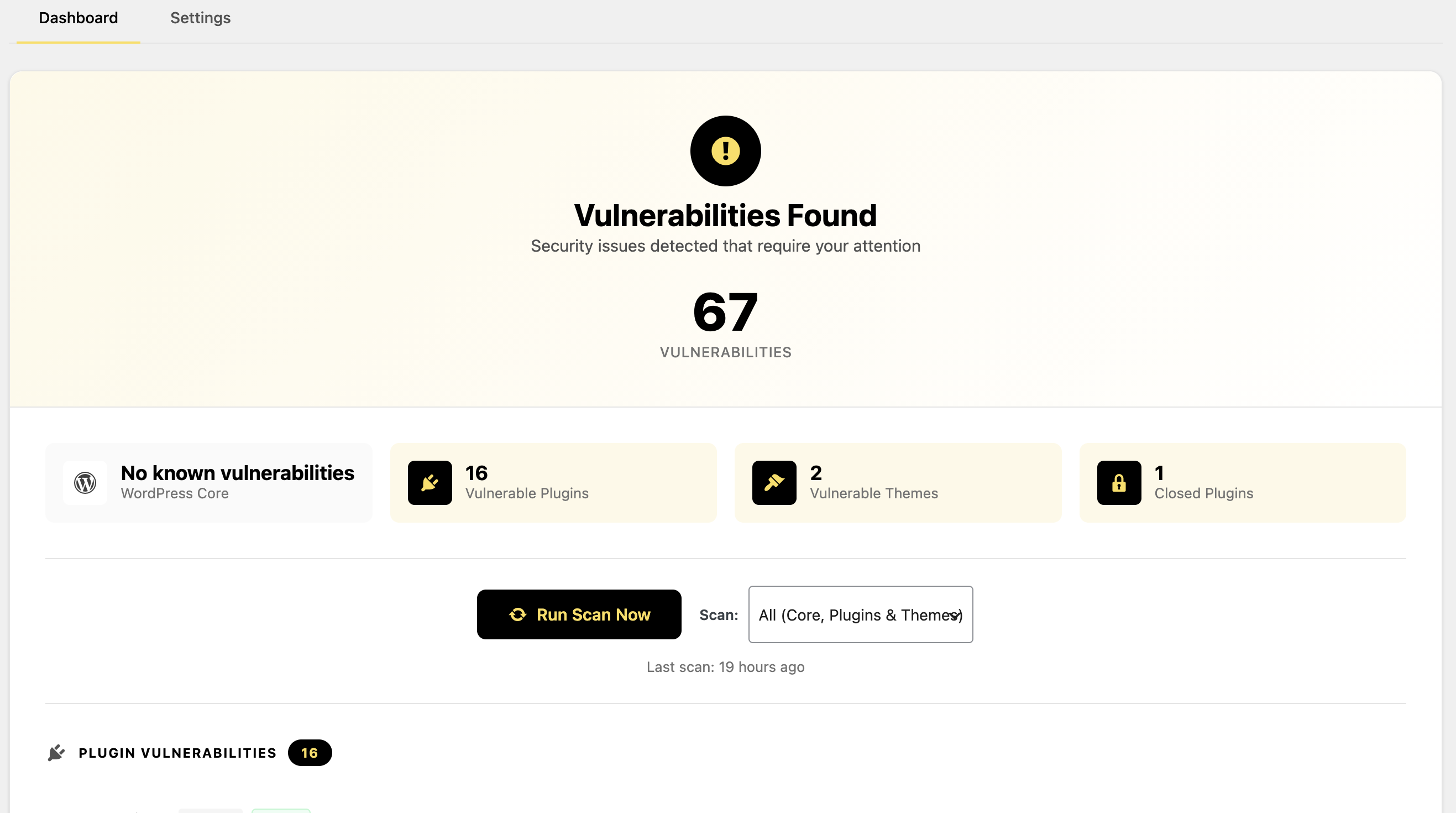
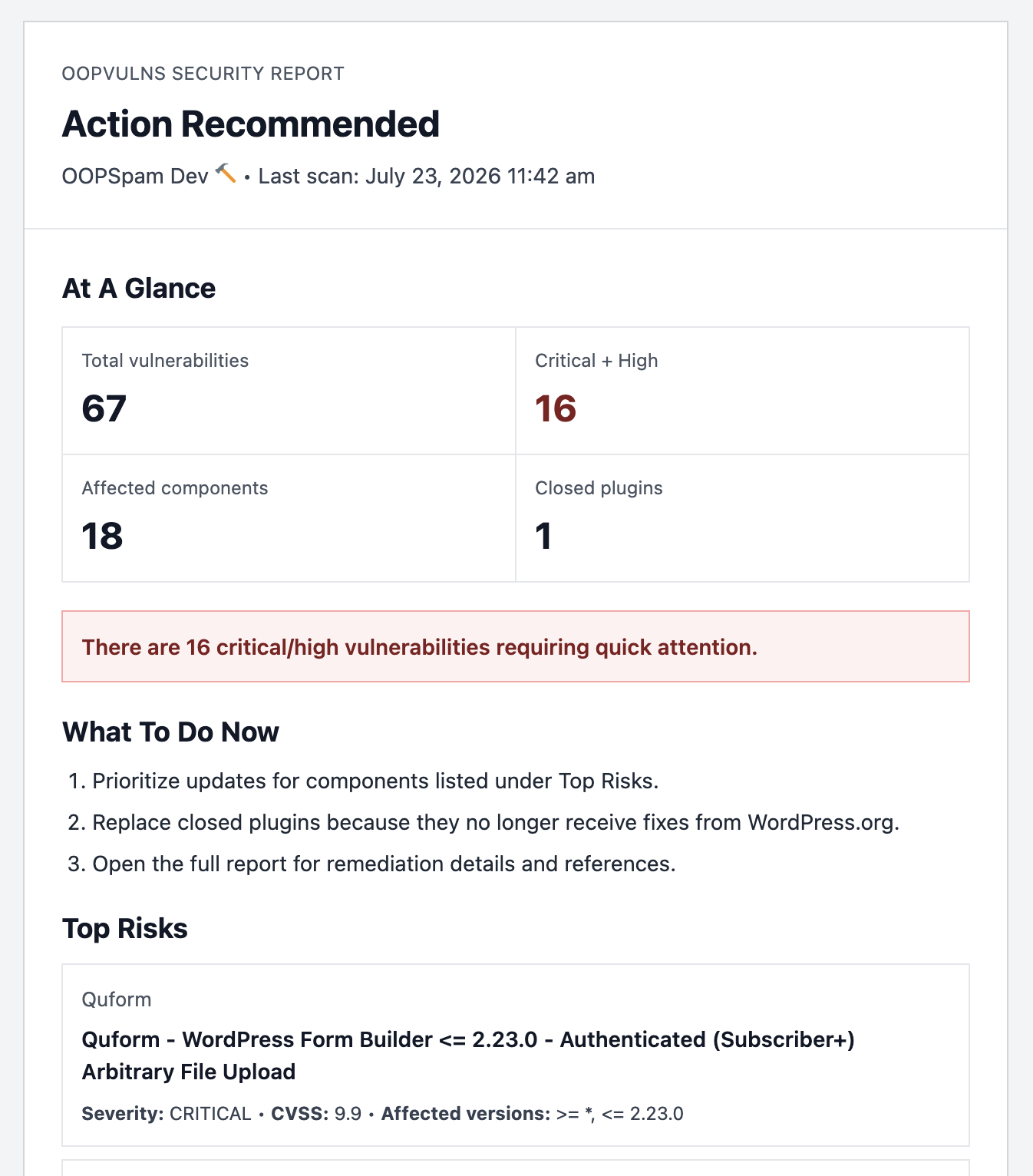
Open the generated “Action Recommended” summary, shown below, for a quick record of total vulnerabilities, critical-plus-high count, and top risks. Keep it as documentation of what was found and fixed after the incident.
Check the plugin maintenance risk section for anything marked “Likely abandoned,” especially the plugin involved in the incident.
Repeat on the schedule you set, and re-scan after every update to confirm flagged issues clear.
Keep Tested Backups
Keep a recent, verified backup stored off-site, separate from the server itself. A backup you’ve never restored from is a guess, not a safety net. Test the restore process before you need it for real.
Quick Reference
| Situation | Action |
|---|---|
| Patch available | Update immediately |
| No patch available | Deactivate or delete the plugin |
| Signs of compromise found | Restore from backup, rotate credentials, get a malware cleanup |
| Plugin unmaintained, no CVE yet | Plan a replacement before it becomes urgent |
| Want to catch the next one early | Run OOPVulns on a schedule for automatic vulnerability and abandonment alerts |
Bottom Line
Patch or remove first, check for damage second, harden after. OOPVulns shortens the time between disclosure and discovery, so the next vulnerability doesn’t have hours to sit unnoticed on your site.